


IPTV on Home TV: Setup Mistakes You’re Probably Making (And How to Fix Them)
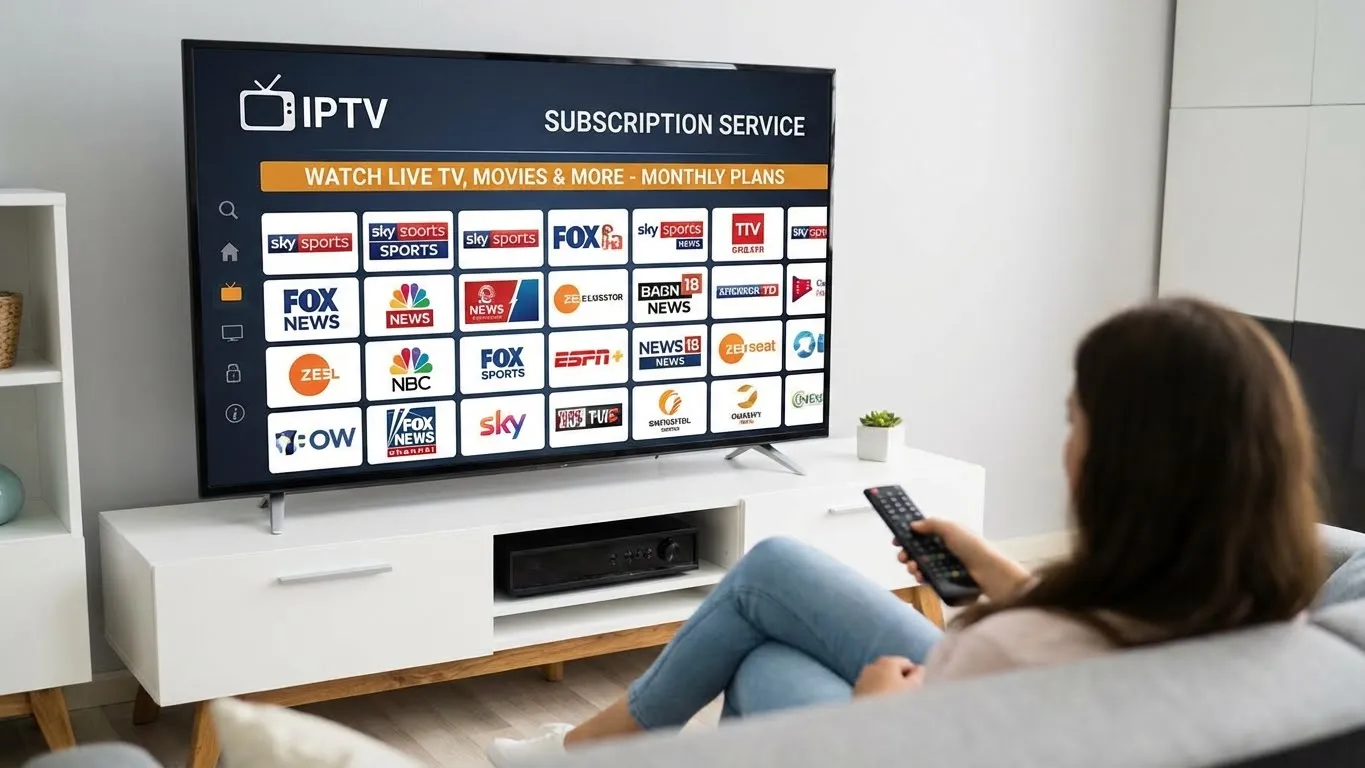
Setting up IPTV on a home TV looks simple at first—install an app, add a playlist, and start watching. Yet many users experience buffering, poor picture quality, missing channels, or constant crashes. In most cases, these problems are not caused by the IPTV service itself, but by small setup mistakes that are easy to overlook.
This guide reveals the most common IPTV setup mistakes on home TVs and shows you exactly how to fix them, step by step.
❌ Mistake #1: Using Wi-Fi Instead of a Wired Connection
Why This Is a Problem
Wi-Fi can be unstable due to:
-
Distance from the router
-
Interference from walls and devices
-
Network congestion
Live IPTV streams are sensitive to small drops in connection quality.
✅ How to Fix It
-
Use an Ethernet cable to connect your TV or Android box directly to the router
-
If Wi-Fi is unavoidable, use a 5GHz network instead of 2.4GHz
-
Place the router closer to the TV
Pro Tip: Wired connections reduce buffering by up to 80%.
❌ Mistake #2: Choosing the Wrong IPTV App for Your TV
Why This Is a Problem
Many users install IPTV apps designed for phones, not TVs. These apps:
-
Are slow with remote controls
-
Have poor EPG layouts
-
Crash more often
✅ How to Fix It
-
Use TV-optimized IPTV players
-
Avoid mobile-only IPTV apps on Smart TVs
-
Choose apps with remote-friendly interfaces
The right IPTV player makes a huge difference in stability and usability.
❌ Mistake #3: Not Optimizing Video Settings
Why This Is a Problem
Default video settings are often incorrect for live IPTV streams. This can cause:
-
Stuttering
-
Black screens
-
Audio delays
✅ How to Fix It
Inside your IPTV app:
-
Enable hardware decoding
-
Disable unnecessary software decoders
-
Set video resolution to Auto
-
Match output resolution to your TV
Inside your TV settings:
-
Disable motion smoothing
-
Enable Game or Cinema mode
❌ Mistake #4: Ignoring Buffer Settings
Why This Is a Problem
Buffer size controls how much data loads ahead. Wrong buffer settings cause:
-
Long loading times
-
Frequent freezing
✅ How to Fix It
-
Increase buffer size if streams freeze
-
Reduce buffer size if channels load slowly
-
Test different values until playback is smooth
Small buffer adjustments can dramatically improve performance.
❌ Mistake #5: Loading Too Many Channels at Once
Why This Is a Problem
Some IPTV playlists contain:
-
Thousands of channels
-
Duplicate streams
-
Unused categories
This overloads the app and slows everything down.
✅ How to Fix It
-
Hide channels you never watch
-
Remove unused playlists
-
Use Favorites lists
A cleaner channel list means faster navigation and fewer crashes.
❌ Mistake #6: Skipping EPG Configuration
Why This Is a Problem
Without a proper EPG:
-
Channels appear blank
-
You can’t see schedules
-
Catch-up TV may not work
✅ How to Fix It
-
Enable automatic EPG updates
-
Manually assign EPG to channels if needed
-
Refresh EPG regularly
A proper EPG makes IPTV feel like real TV.
❌ Mistake #7: Using Old or Low-Quality Hardware
Why This Is a Problem
Many Smart TVs have:
-
Weak processors
-
Limited memory
-
Slow app performance
✅ How to Fix It
-
Use an external device like an Android TV box or streaming stick
-
Close unused background apps
-
Restart your device weekly
External streaming devices often outperform built-in TV systems.
❌ Mistake #8: Not Updating IPTV Apps and TV Firmware
Why This Is a Problem
Outdated software causes:
-
Compatibility issues
-
App crashes
-
Security risks
✅ How to Fix It
-
Update IPTV apps regularly
-
Keep TV firmware up to date
-
Enable automatic updates if available
Updates often fix buffering and playback bugs.
❌ Mistake #9: Ignoring Internet Speed Requirements
Why This Is a Problem
Streaming quality depends on speed:
-
HD requires stable speed
-
4K requires much higher bandwidth
✅ How to Fix It
Recommended speeds:
-
SD: 5 Mbps
-
HD: 10–15 Mbps
-
4K: 25+ Mbps
Make sure no heavy downloads run while streaming.
❌ Mistake #10: Not Using Parental Controls
Why This Is a Problem
Without restrictions:
-
Kids can access adult content
-
Channels can be changed accidentally
✅ How to Fix It
-
Enable PIN locks
-
Restrict categories
-
Create kids-only profiles
Parental controls protect both content and settings.
❌ Mistake #11: Overloading the Network with Multiple Devices
Why This Is a Problem
Multiple devices streaming at once can:
-
Slow down IPTV
-
Cause buffering
✅ How to Fix It
-
Limit simultaneous streams
-
Upgrade your router
-
Use Quality of Service (QoS) settings
❌ Mistake #12: Not Restarting Equipment Regularly
Why This Is a Problem
Routers and TVs store temporary data that slows performance over time.
✅ How to Fix It
-
Restart router weekly
-
Restart TV and streaming devices regularly
-
Clear IPTV app cache monthly
❌ Mistake #13: Confusing App Issues with Provider Issues
Why This Is a Problem
Users often blame the IPTV service when the problem is:
-
App misconfiguration
-
Internet instability
✅ How to Fix It
Test:
-
Multiple channels
-
Different apps
-
Another device
This helps identify the real source of the issue.
✅ Final Checklist for a Perfect IPTV Home Setup
✔ Wired internet connection
✔ TV-optimized IPTV player
✔ Correct video and buffer settings
✔ Clean channel list
✔ Updated apps and firmware
✔ Stable internet speed
✔ Parental controls enabled
🎯 Final Conclusion
Most IPTV problems are not technical failures—they are setup mistakes. Once you fix these common issues, IPTV becomes smooth, stable, and enjoyable.
By optimizing your home TV setup correctly, you’ll experience:
-
Faster channel switching
-
Clearer picture quality
-
Less buffering
-
Better reliability
With the right setup, IPTV can easily outperform traditional cable and satellite TV. If you are looking for some iptv-forsale accounts channels, series and films .
Gesponsert
Gesponsert
Kategorien
- AI
- Design
- Fashion and Art
- Investment and Finance
- Top 10
- Christianity
- Climate and Enviroment
- Writing and Film
- Fitness
- Food
- Spiele
- Gardening
- Health
- Home and Interiors
- Marketing and Sales
- Music
- Making Money Online
- Others
- Books
- Religion
- Ecommerce
- Sports
- Cars
- Wellness
- Tech Gadgets
- Veranstaltungen
- Governments and Nations
- Science and Engineering
- Real Estate
- Travel, Tourism and Hospitality
- Ausbildung
- Startups
- Beauty and Cosmetics
- Agriculture
- Computer Operating Systems
- Crypto
- Politics and News
- Video Review
- Immigration
Mehr lesen
The hemp juice market has emerged as a distinctive category within the broader functional beverage and plant-based nutrition space. Derived from hemp leaves and stalks, hemp juice is gaining recognition for its natural composition, clean-label appeal, and versatility in wellness-oriented product formulations. As consumers increasingly seek beverages that align with holistic lifestyles, hemp...

According to a new report from Intel Market Research, the global Tungsten Carbide Beads market was valued at USD 130 million in 2024 and is projected to reach USD 173 million by 2032, growing at a steady CAGR of 4.1% during the forecast period (2025–2032). This growth is driven by increasing demand for high-performance grinding media across multiple industries, particularly in lithium...

According to a new report from Intel Market Research, the global sawmill market was valued at USD 202.04 billion in 2025 and is projected to reach USD 439.09 billion by 2032, growing at a robust CAGR of 12.0% during the forecast period (2025–2032). This growth is propelled by the increasing global construction activities, rapid urbanization...
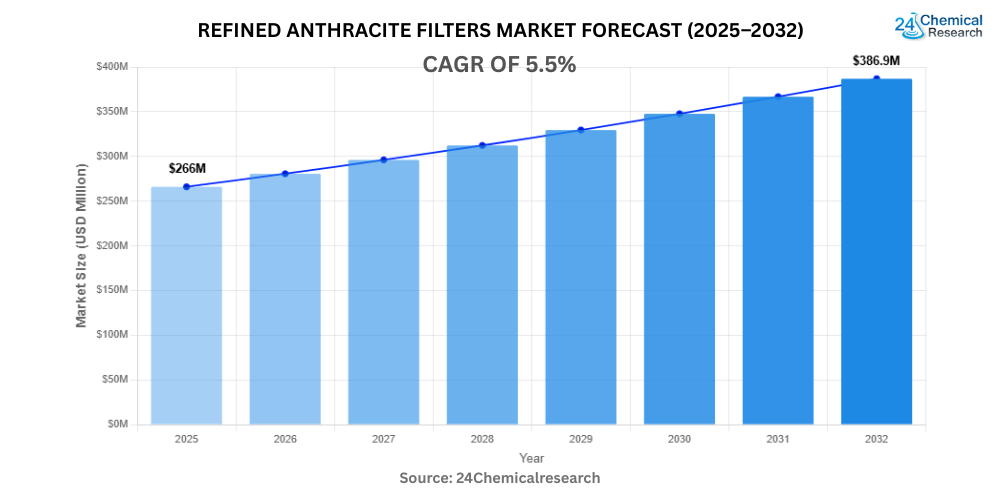
Global Refined Anthracite Filters Market continues to demonstrate steady growth, with its valuation reaching USD 266 million in 2024. According to recent market analysis, the sector is projected to grow at a CAGR of 5.5%, reaching approximately USD 430.68 million by 2032. This expansion is primarily driven by increasing water treatment demands across municipal and industrial sectors worldwide,...
"Latest Insights on Executive Summary Benzene Market Share and Size CAGR Value The global benzene market was valued at USD 51.61 billion in 2024 and is expected to reach USD 65.37 billion by 2032. During the forecast period of 2025 to 2032 the market is likely to grow at a CAGR of 3.00% This Benzene Market research report proves to be true in serving the...